Listing video tools at a glance
We make Nanopixo, so we're part of this comparison. We checked each tool's own feature and pricing pages on 23 October 2026. Prices are in each company's currency. You'll find links to the pricing pages in Sources below.
| Tool | Useful for | Price and limits |
|---|---|---|
| NanopixoTry it for free | Videos plus regular social posts | €20 per video, pay as you goFirst video free. From €10 per video on the Platinum annual plan (240 videos/year). |
| Pedra | Video plus staging, tours and floor plans | €29/month or €239/yearUnlimited slideshows; AI animation uses up plan units |
| AutoReel | Automatic videos you can edit on a timeline | $41 a month, billed every 3 monthsEssential: 5 videos every 3 months, not every month |
| Reel-E | Several video formats and a listing website | $59/month, or $44/month billed yearlyEssential: 3 listings a month, each with several formats |
| Amplifiles | Paying for each animated photo | $1.50 per photo; monthly plans from $29Example: 7 photos cost $10.50; some options use more |
| BetterSpace | Making videos and scheduling posts | From $29/month; scheduling from $89/monthYour plan's AI use is shared with photos and other AI work |
Start with the video you want to make
Think about the video you need next. A new listing calls for a property video. A market update may need a presenter. Footage from an open house needs an editor. That choice will narrow the list quickly.
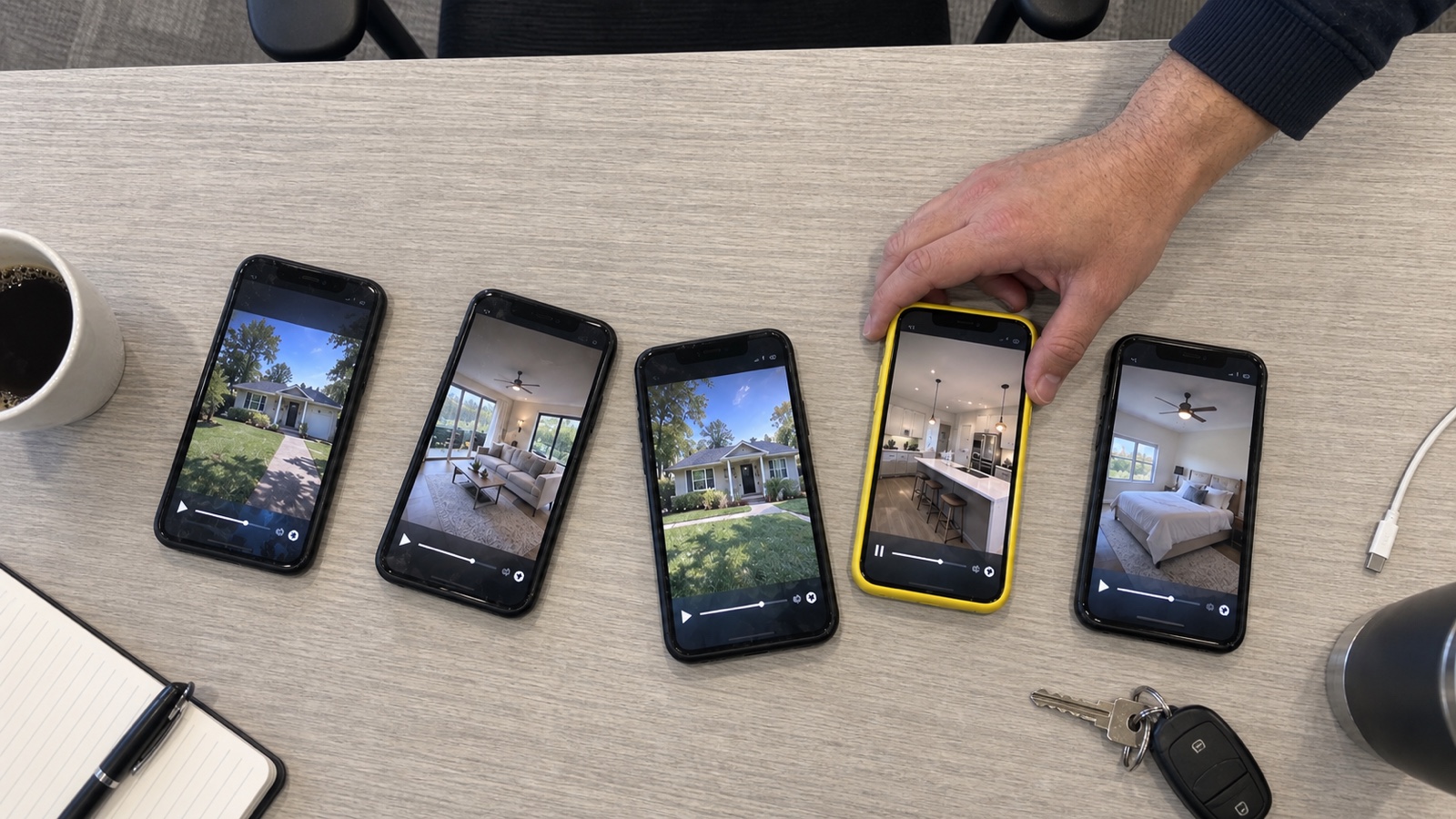
- From listing photos: make a video with motion, music, your branding and, if you want it, a voice-over. The six main tools below do this.
- With a presenter: use an avatar or film someone speaking for a market update, a buyer guide or an agency introduction. HeyGen is one option. Some property tools offer presenters too.
- From footage you filmed: bring your clips, photos, text and sound together in an editor such as Canva or CapCut. Both have AI features, but you shape more of the video yourself.
Six tools that turn listing photos into videos
Each tool has a different strength. Here is what matters when you use one for a real listing.
Nanopixo
For a listing video and the posts that follow.
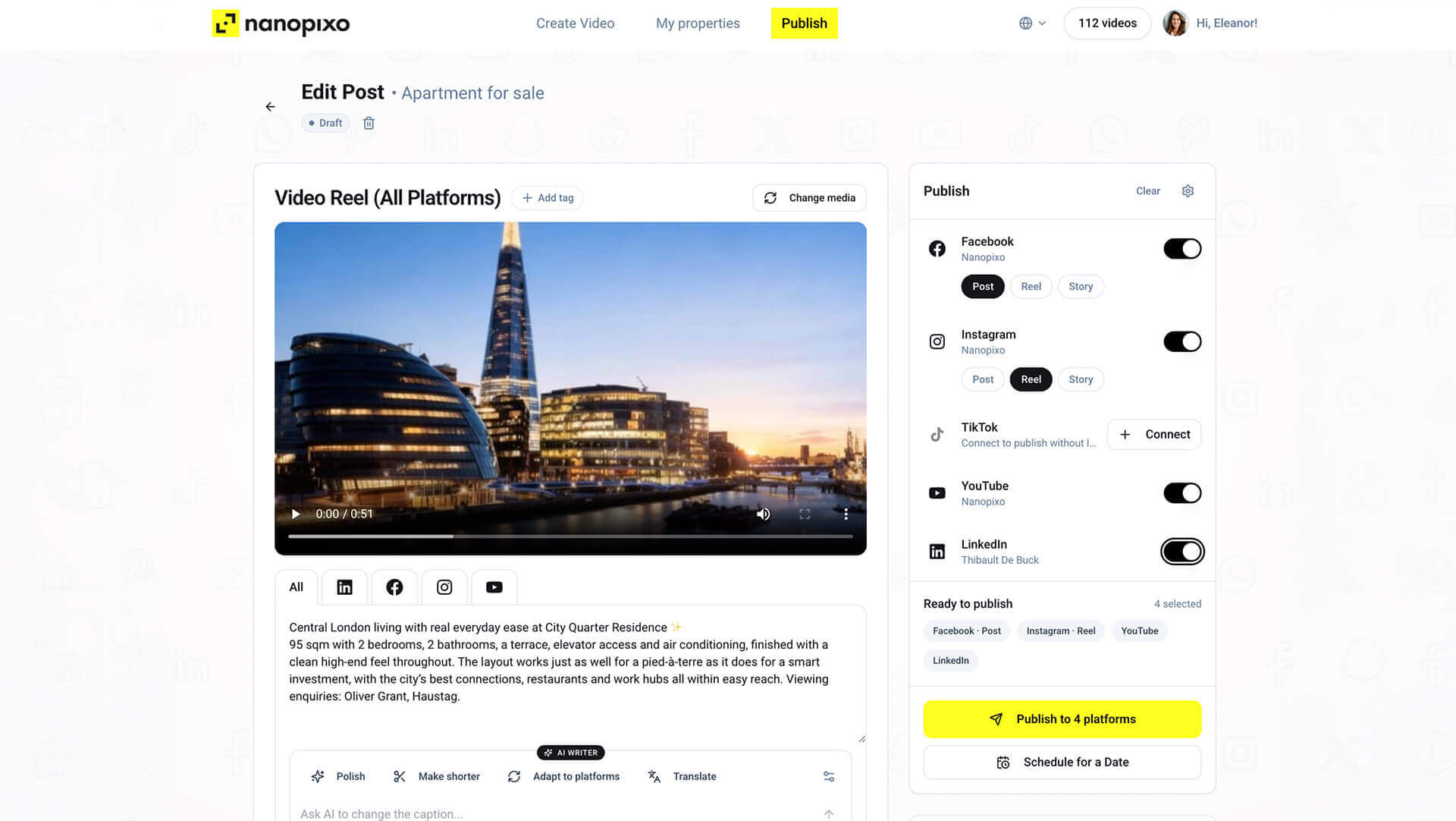
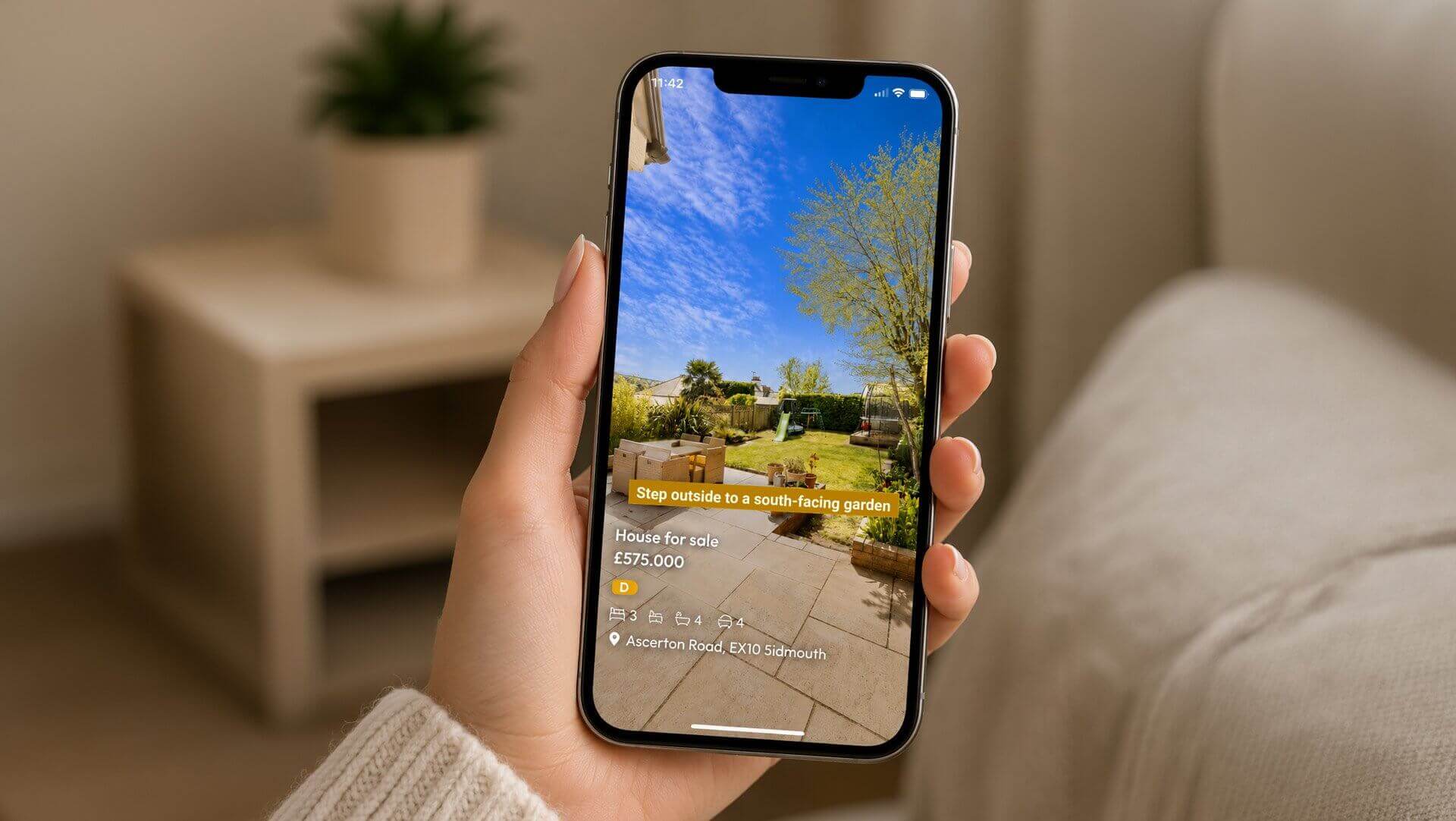
Start with your photos or a supported listing link. If your agency uses a supported system to manage listings, you can import a property from it. Nanopixo makes a video with motion, your branding and a script you can edit. You can add a voice-over in any of 13 languages, then download a portrait or landscape version. You can also make carousels and social posts from the same listing.
Some customers tell us they tried other tools before choosing Nanopixo. They point to how easy it is to use and the quality of the videos.
Good to know: you can make the video and its social posts in one place. Before you publish, watch each scene and check the script, just as you would with any AI video tool.
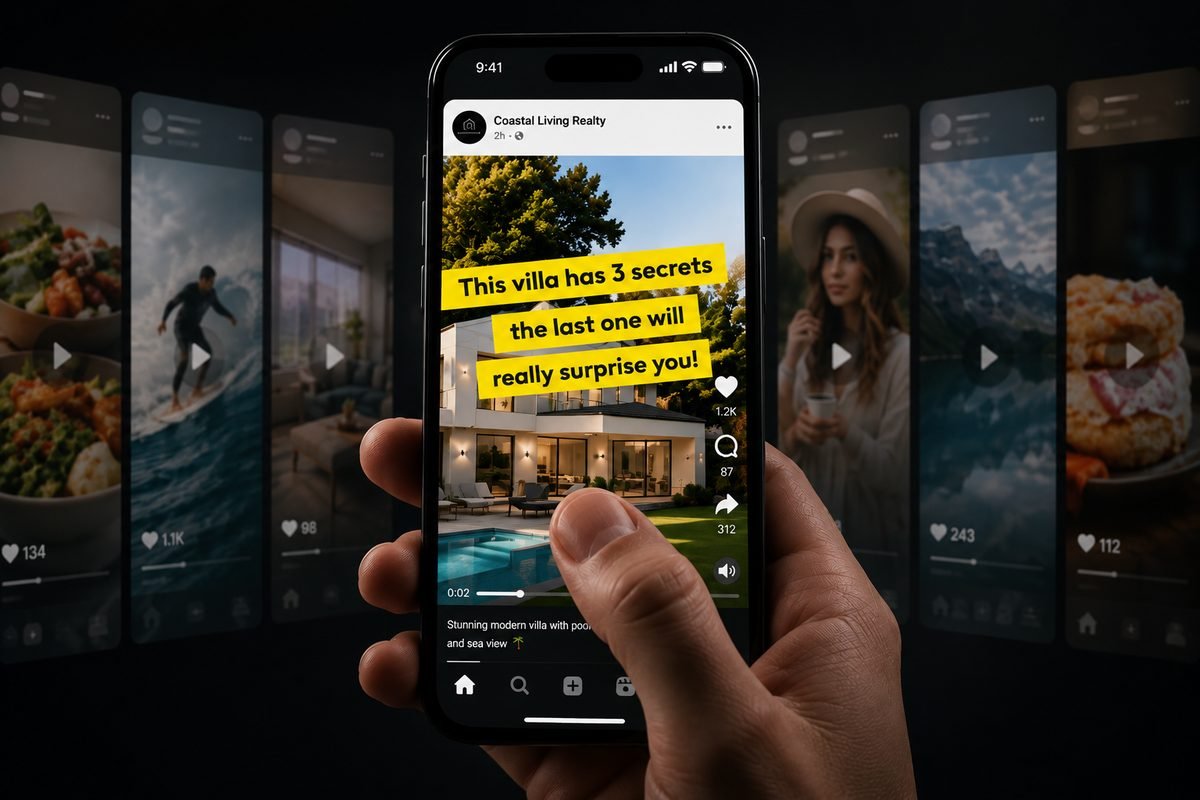
New sellers keep asking me for these videos. They see them on their socials. And my competitors keep wondering how I make them.
 Lorraine RhodickNew Door, Bishopton, Scotland
Pedra
For videos, staging and other property media.
Pedra makes videos from photos, alongside virtual staging, photo editing, tours and floor plans. Its videos can include music, voice-over and branding in vertical or horizontal format.
Before you choose: Pedra's unlimited slideshows are different from AI-animated photos. Each animated photo uses five plan units. The monthly starter plan has 100 units, which also cover other AI image work. If you want motion in eight photos, check the units you'll need.
AutoReel
For more control over the finished video.
AutoReel makes a video for you, then lets you change it with Quick Edits or Studio. Studio gives you a timeline for text, music, intros and outros.
Before you choose: editing is optional. When we checked, Essential worked out to $41 a month, billed every three months, and included five videos per three-month period. You can download a video or share a link. If you need to publish straight to social media, check that feature separately.
Reel-E
For several video formats from one property.
Reel-E makes landscape, portrait and square videos, with and without your branding. It also creates a website for the listing. Its product pages list AI-written narration, captions and editing in Keylight Studio.
Before you choose: the plan counts listings, not individual video files. Essential covers three listings a month. Check the photo and AI motion limits, along with how the plan is billed.
Amplifiles
For pricing based on the photos you use.
Amplifiles starts with your photos or a supported listing link. You can choose camera moves, narration, captions and branding, then make landscape, portrait or square videos.
Before you choose: pay as you go costs $1.50 per photo, or $10.50 for seven photos. When we checked, monthly plans started at $29 for 23 photos. Re-animation and enhanced options have separate rules. Price the video you want to make, including any changes.
BetterSpace
For videos and scheduled social posts.
Give BetterSpace photos or a listing link and it makes a video with narration and captions. You can edit the result and schedule posts for Instagram Feed, Instagram Reels, Facebook and TikTok.
Before you choose: paid plans start at $29 a month. Scheduling starts with Growth at $89 a month. The AI allowance is shared with other content, so the starter plan does not include a fixed number of videos. Check the social networks and team seats you need.
When you need a presenter or an editor
A listing video is only one kind of content. If you want someone speaking on screen or you have footage to edit, one of these tools may fit better.
HeyGen
HeyGen may suit a market update, an agency introduction or a message in several languages. It offers avatars, videos made from a script, and translation. Watch how the presenter looks and speaks. If you use it to show a property, make sure the video stays true to the real home. Check the product and plan before assuming it can make the listing video you need.
Canva
If you already make brochures and social graphics in Canva, its video editor may feel familiar. It has a timeline, captions and AI tools, including image-to-video. You still choose the story, images and layout. Check which features need a paid plan, and make sure any AI images match the real property.
CapCut
CapCut may suit you if you film walkthroughs or speak to camera and want to edit the footage yourself. It offers subtitles, text-to-speech, background removal and effects. Allow time to choose and cut your clips. Check that any music, templates or other assets you use are licensed for commercial work.
Compare the cost per finished listing
Compare the same job in every tool: one property, eight photos, a portrait video with voice-over, a landscape version and your logo. Check the cost of revisions and publishing too.
- Count what the price covers. Per-photo pricing rises as you animate more photos. A per-listing plan may include several video formats. Unlimited slideshows may still limit AI motion.
- Check when you pay. A price shown per month may require a three-month or annual commitment. Include top-ups, required extras and videos you paid for but did not use.
- Include your time. You may still need to correct facts, fix the voice-over, adjust branding, export and post. That work matters even when the video itself is inexpensive.
Check the result before publishing
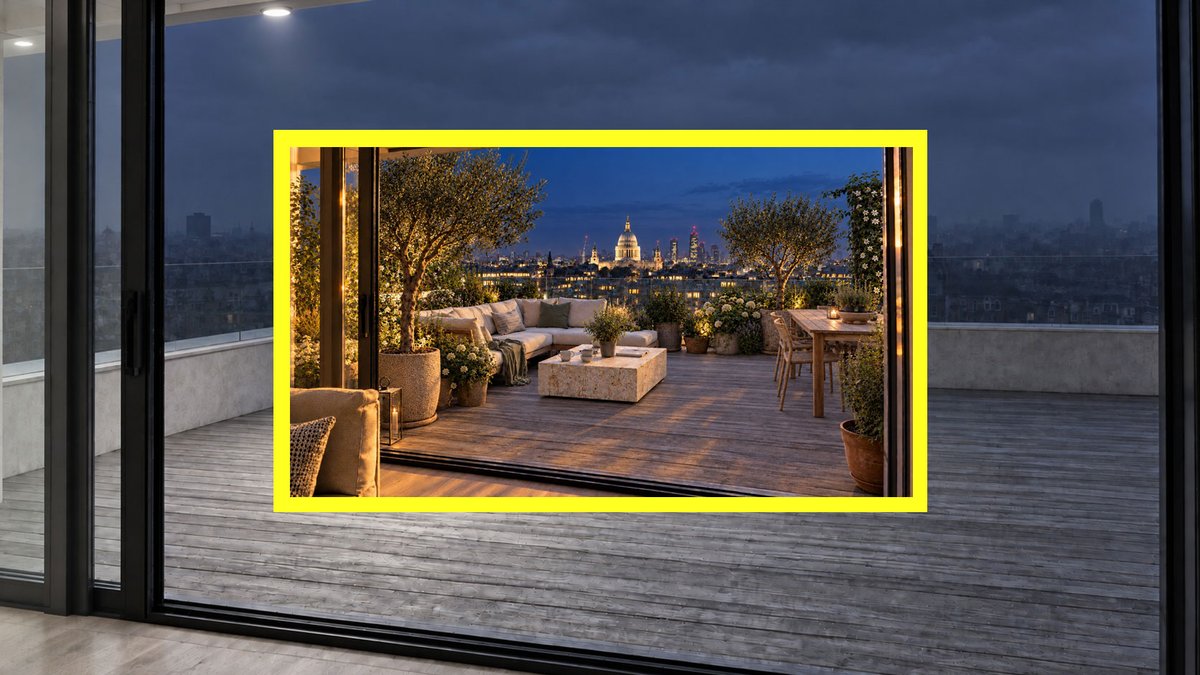
Test each tool with a property you know well. AI motion can add details or distort shapes, including in Nanopixo. Watch every scene before you publish.
- Compare doors, windows, room sizes, surfaces and views with the original photos. If a scene looks wrong, pause and check it frame by frame.
- Check every spoken and written fact, including the price, room count, floor area and location. Make sure private and shared features are described correctly.
- Read the captions and contact details on a phone. Check both portrait and landscape versions. Listen carefully to names and numbers in the language you plan to use.
- Make sure you can use the photos and music. If you stage or change a scene, check the rules of the site where you plan to post it.
Which tool should you try first?
Start with the next video you actually need to make.
- Listing videos and regular social posts: try Nanopixo. Add a listing, check the video, then download it or plan a post.
- Staging, tours and floor plans too: look at Pedra, and count the photos you want to animate.
- More control over the edit: try AutoReel Studio or Reel-E Keylight Studio with one of your own listings.
- Several formats for each property: look at Reel-E's per-listing plan. If you prefer to pay per photo, look at Amplifiles.
- Videos and scheduling in one place: compare Nanopixo and BetterSpace for the networks, content and team size you need.
- A presenter or your own footage: try HeyGen for a presenter, or Canva and CapCut for editing. You may already use a tool that fits.
Try your next listing, then decide
Try Nanopixo with one of your own listings. Check the scenes, script and branding. Then download the video or plan a post. Your first video is free, so you can judge the result before you pay for another.
Sources and how we checked
We used public product, help and pricing pages to compare features, prices and who each tool suits.
For AutoReel and Amplifiles, we also checked the prices shown after choosing a plan.
Pricing sources: Pedra, AutoReel, Reel-E, Amplifiles, BetterSpace.
Sources for presenter tools and editors are linked in their sections. Nanopixo prices come from the site's own price list and follow your chosen currency. Competitor prices are snapshots from the date above, in their own currencies. Plans, taxes, offers, who can sign up, and features can change. Check your own needs and the final terms at checkout.